Redundancy Examples
The following topic describes several examples of site and domain configurations that demonstrate CygNet Redundancy. Included is a discussion of the role of the RSM, a redundant RSM visible on more than one domain, running one service only on a different domain, redundant failover sets, local data-center failover, remote data-center failover, soft failover with synchronization, hard failover without synchronization, redundancy configuration tools, and the Redundancy Dashboard used to visualize failover.
RSM Implementation
The majority of the logic for CygNet Redundancy is built into the RSM service. Historically the RSM existed to make sure the other CygNet services were running. With the implementation of CygNet Redundancy the RSM now has a dedicated database containing information on every service in the redundant environment, including the domain and role each should be running in. All redundant RSMs will synchronize with each other (even across domains) to make sure they all agree on their various roles. They will regularly check to make sure their managed services are running on the right domain and restart them if they are not. To make this possible, each RSM must be uniquely named so that it can be available on multiple domains at the same time without conflicting with each other.
We recommend that you keep the site name, but change the .RSM extension to reflect the host on which they are running. For example, you might have RSM names such as CYGNET.RSM_PNP (for the Production Network, Primary Host) or CYGNET.RSM_PNB (for the Production Network, Backup Host).
Figure 1 shows a very simple site setup, with just a few services to demonstrate what to expect.
|
Click the thumbnail to see |

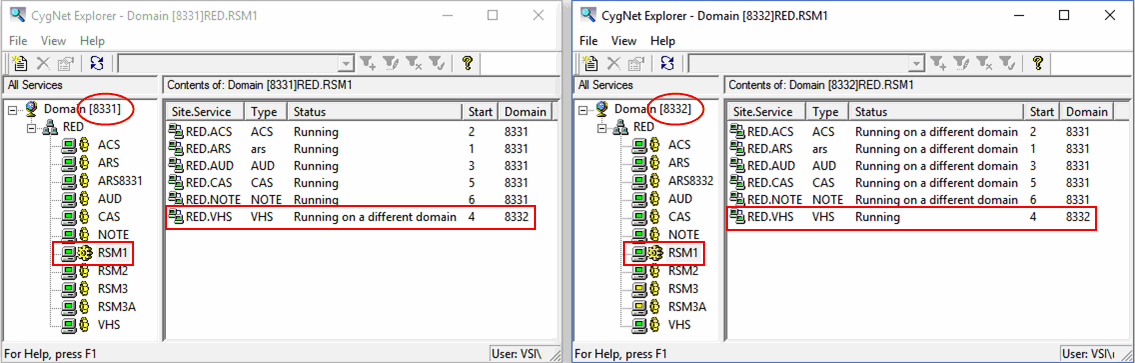
In Figure 1 above CygNet Explorer is running on two domains (8331 and 8332) with the RED.RSM1 service visible on both domains. Note that we don’t have two running services with the same name; rather, this is a single running process that is visible to multiple CygNet domains. Notice the Domain column showing which domain the managed services are running on for each RSM. Additionally if the domain doesn’t match the ambient domain, the Status column displays Running on a different domain instead of simply Running.
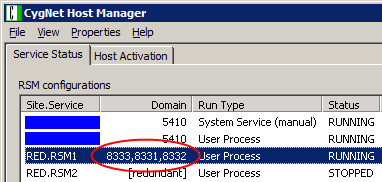
Figure 2 shows CygNet Host Manager for this setup, with the RED.RSM1 service running on three domains: 8331, 8332, and 8333.
|
Redundancy Example - Figure 2: |
Running on a Different Domain
After performing a failover of only the VHS, the RED.RSM1 service is now running most of its managed services on the 8331 domain, while its VHS is now running on the 8332 domain, as shown in Figure 3.
|
Click the thumbnail to see |
Paired Failover Set
In Figure 4 below the paired failover set is RED.RSM2. If we look at those two sets of services, together they are running the 8331 and 8332 domains, which makeup a locally redundant failover set. Notice that both RED.RSM1 and RED.RSM2 are visible to both the 8331 and 8332 domains and they both contain an identical set of services.
|
Click the thumbnail to see |

Split Site and Local Failover
Figure 5 shows a third domain in this example, the 8333 domain, which is configured to be in a different (possibly remote) data center. The site running on the 8333 domain is split across two servers under RED.RSM3 and RED.RSM3A, with most services running under RED.RSM3, and the VHS running under RED.RSM3A. This is to demonstrate that you can split a site across multiple servers in a redundant environment, even when the paired site is configured differently.
|
Click the thumbnail to see |
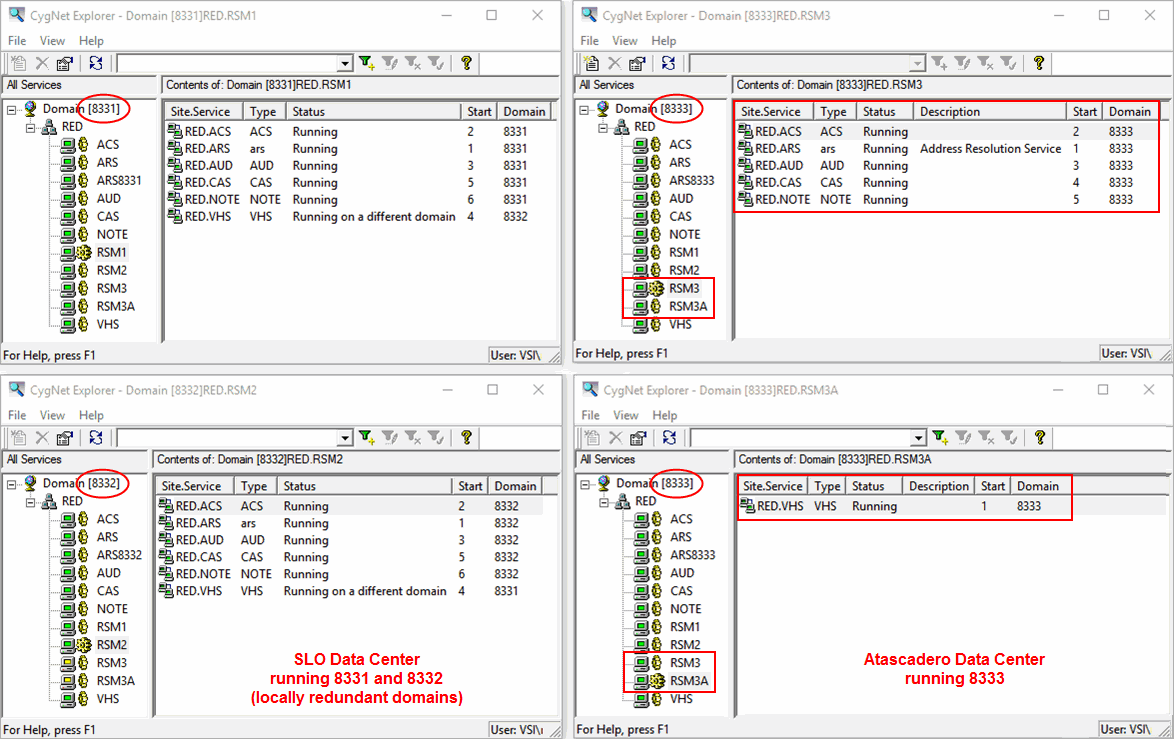
The two windows on the left show the 8331 and 8332 domains, which are the locally redundant domains in the SLO data center. The two windows on the right both show the 8333 domain, which is running in the Atascadero data center on two different servers. To keep the example simple, local redundancy is not configured for the Atascadero data center, although that could easily be added.
For the locally redundant set (8331 and 8332), we can failover individual services or the entire site. For the data-center redundancy set (8331 and 8333), we must failover the entire site. So for a locally redundant set, we might choose to always run in a partial failover state to spread the load across both servers (as demonstrated with the VHS example in Figure 3 above), instead of having one always being idle.
Data-Center Failover
If performing a data-center failover, the services running on the 8331 and 8333 domains will swap, as shown in Figure 6.
|
Click the thumbnail to see |
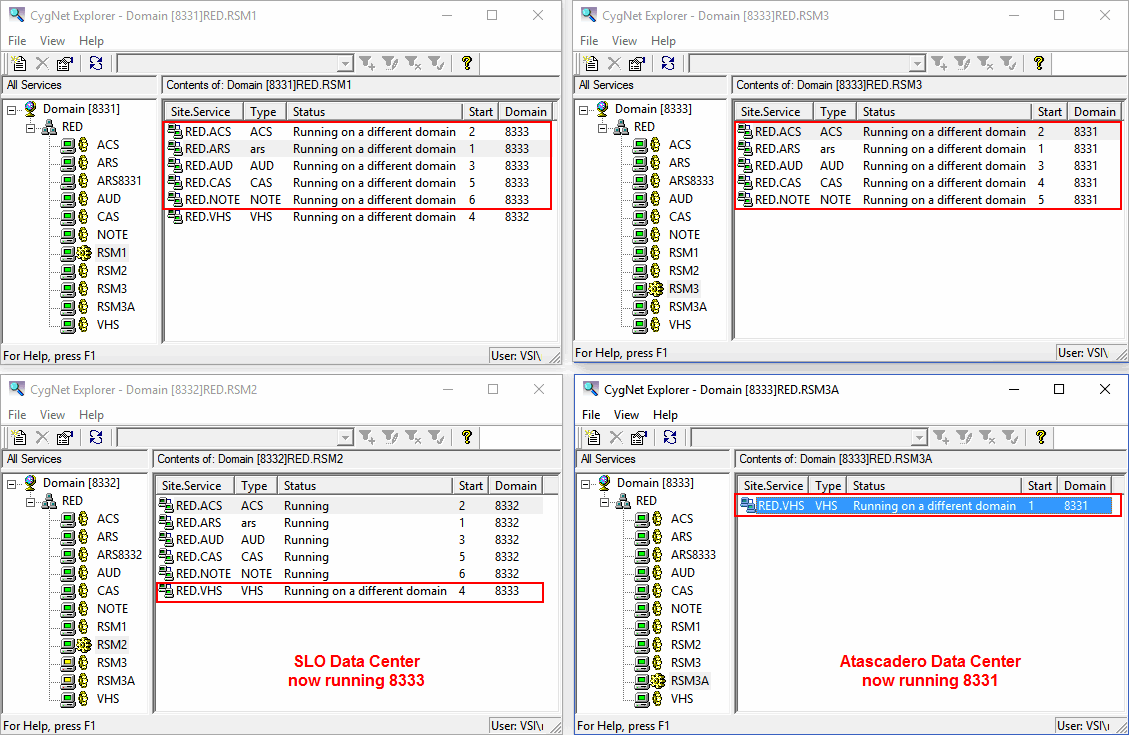
After a data-center failover, the live domain (8331) is now running in the Atascadero data center instead of the SLO data center. If there was a hardware failure in the SLO data center, we can still do a local failover, but it will now be between the 8332 and 8333 domains.
Soft and Hard Failover
The actual failover process is quite simple. Identify the services you want to failover, and the RSMs take care of the rest. If you are doing a soft failover, the system will first make sure the services are fully synchronized. It does this by telling the active service in the set to freeze and stop all processes, putting the service into a read-only mode. The standby service is then told to start replicating until the services are an exact match. The next step is to stop both the active and standby services, then restart the standby services on the active domain. Once those are up and running, the previously active services are told to start on the standby domain.
In the case of an emergency, you can issue a hard failover, which will skip the synchronization step and complete the failover whether the services are all ready or not.
Redundancy Configuration Tools
While this may seem complicated, we have provided some configuration tools to simplify things:
- The Config File Manager is used to manage local or remote configuration files via manual and mass-modification options, and also perform basic validation for any keyword changes.
- The Redundancy Editor is used to configure the role of each domain and which RSM services are redundant. It is available via the right-click menu from the RSM in CygNet Explorer. It can also be instantiated within CygNet Studio from any screen.
Redundancy Dashboard
The primary visualization tool for redundancy (and failover) is a set of sample dashboard screens that have been implemented in CygNet Studio, the Redundancy Dashboard. These screens can be modified to your liking to suit your environment and enterprise's needs. Once you have configured your system for redundancy using the Config File Manager and the Redundancy Editor, these screens will work out of the box.
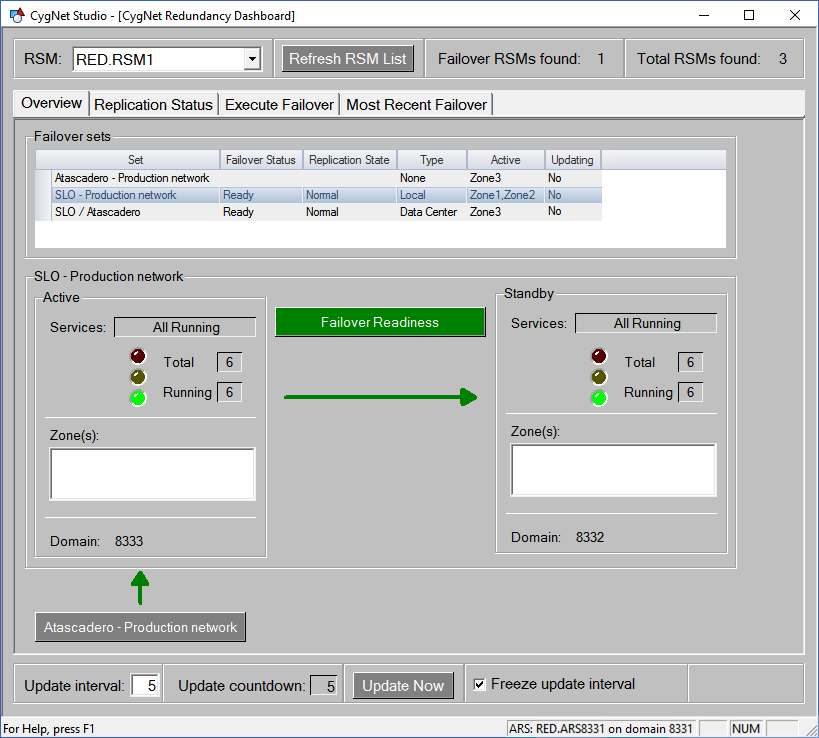
Figure 7 shows an Overview screen with the three failover sets:
- SLO - Production network (local failover)
- SLO / Atascadero (data-center failover)
- Atascadero - Production network (no failover)
The Failover sets grid at the top of the screen gives a quick summary of the failover set's role (local failover or data-center failover) and whether they are failover ready.
Select any one failover set to get a more complete status in the lower portion of the screen. For each set you can see which domains are in the set, the number of running services, whether or not the services are running, the status and direction of replication (indicated by the arrow) and where the data is coming from (if this set does not contain the live domain). In Figure 7 the SLO - Production network is sourcing its data from the Atascadero - Production network.
|
Click the thumbnail to see |
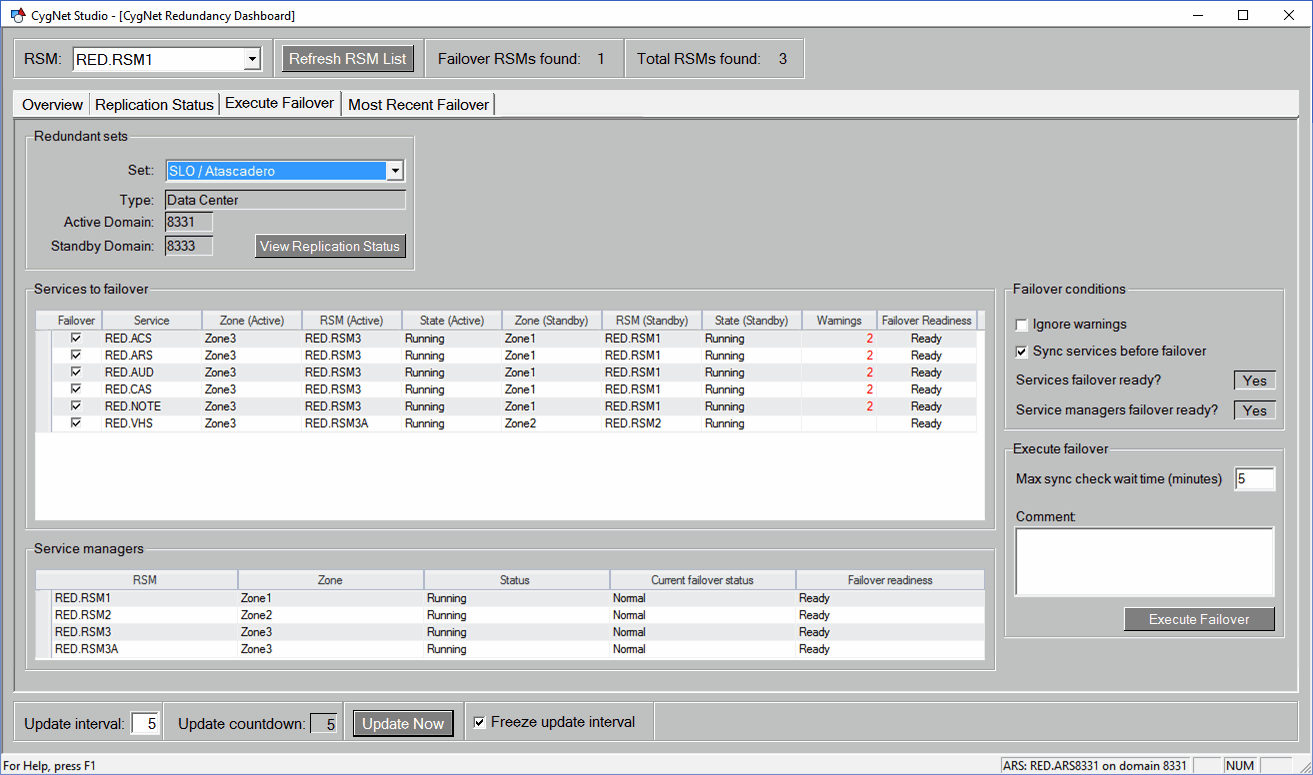
To perform a failover, click Failover Readiness or go to the Execute Failover page shown in Figure 8. Pick a failover set, select the services you want to failover, and then click the Execute Failover button.
In Figure 8 the SLO / Atascadero set is ready to failover. Click Execute Failover to perform a data-center failover, and observe the services running on the 8331 and 8333 domains swap.
|
Click the thumbnail to see |
See Execute Failover for more information about the other options on this page.


